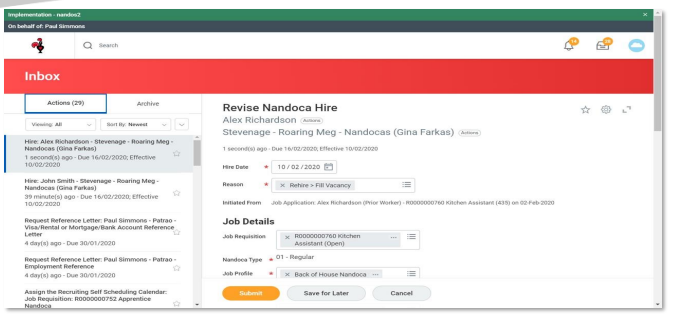
What do I need to know and why about rehires and completing the 'find duplicates for candidate' to do step?
To rehire someone, (for example a previous nandoca would like to be rehired as a nandoca) you first need to have a requisition open with available positions: Creating a job advert (requisition)
They can then apply in the same way as any other candidate. One of the questions on the application is "have you worked for Nando's before?" and they need to answer "yes".
Otherwise, if you want to save them the job of filling out a full application, you can do it for them by following this guide Creating a prospect candidate, then this guide Creating an application on the candidates behalf.
You then need to ensure you follow the steps in this guide before you hire them to prevent any tech issues occurring when they start as if you hire them without completing this step it would result in the following issues:
- The Nandoca is assigned a new nandoca ID and therefore will need to complete all of their details again and will not have a continuous service date.
- They may experience pay issues.
- If they have the same email address as previous, they will experience login issues which require a number of teams to fix.
How do I complete the 'find duplicates for candidate' to do step?
1. Click the Inbox icon in the top right corner
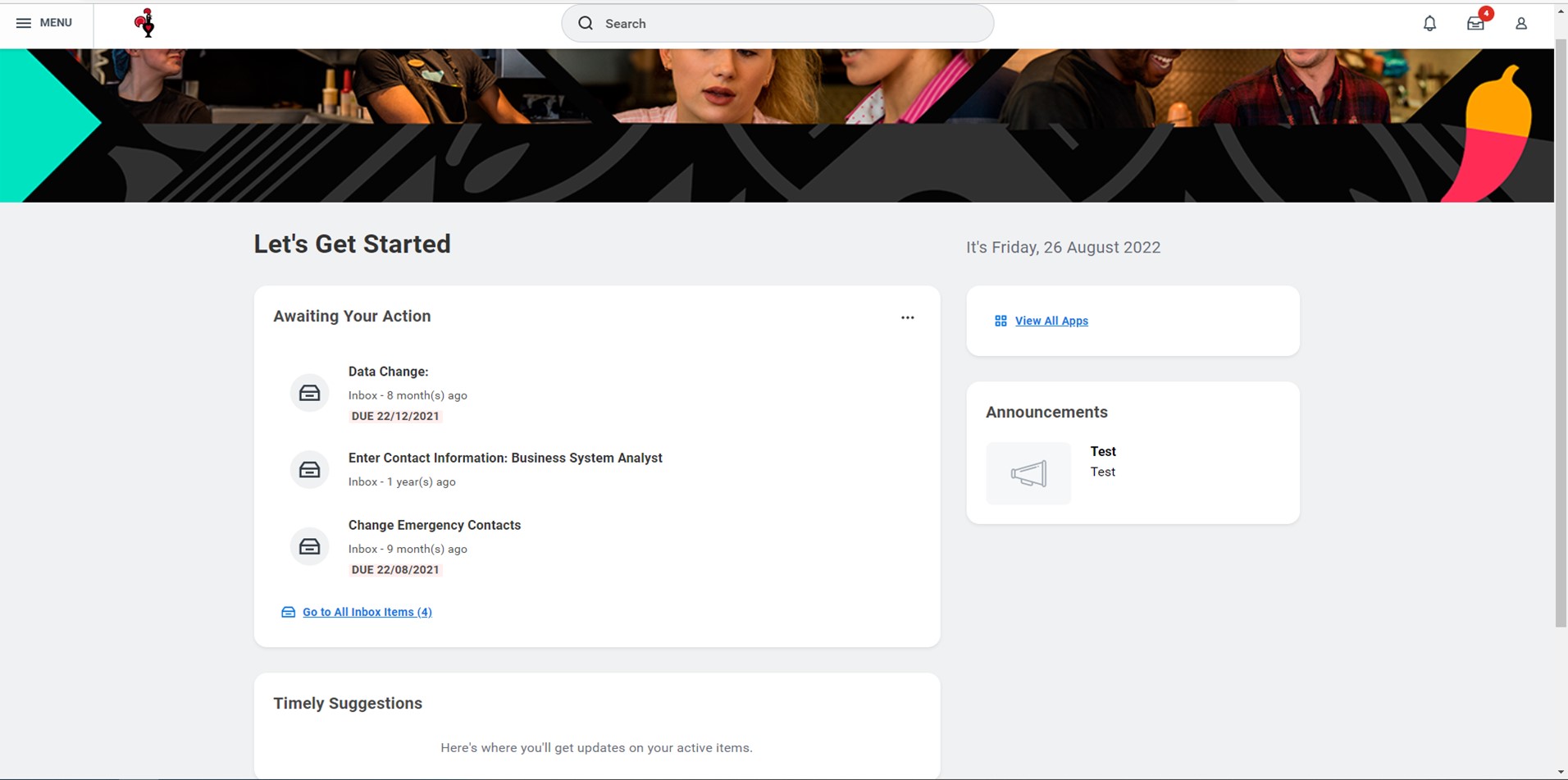
2. Click on the ‘To Do’ task and make a note of the candidate name.
Click on the ‘Find Duplicates for Candidate’ orange button 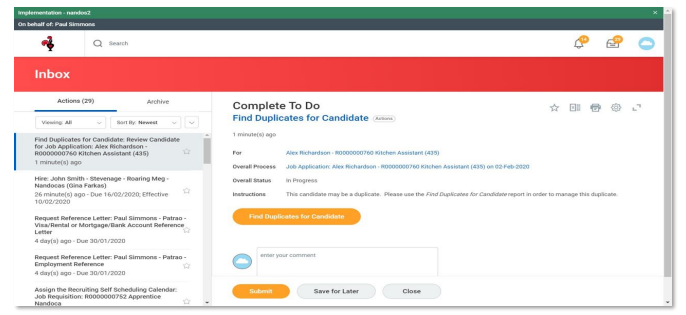
3. Type in the candidate name to the ‘Candidate’ box and click enter 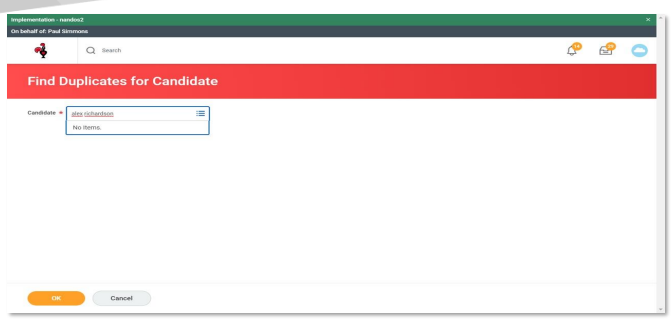
4. The correct candidate should now be selected.
Click “OK” 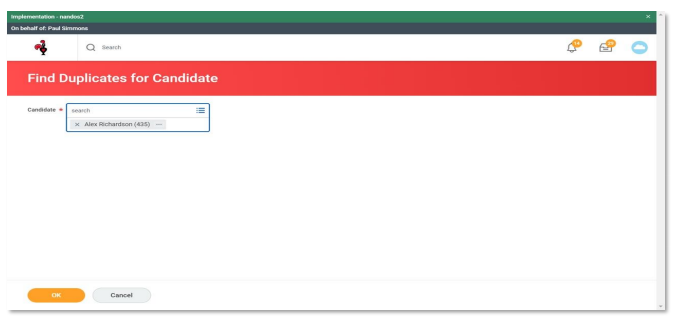
5. Workday should now identify the previous worker that is a duplicate for the candidate.
Click ‘Merge’ next to the previous worker record. 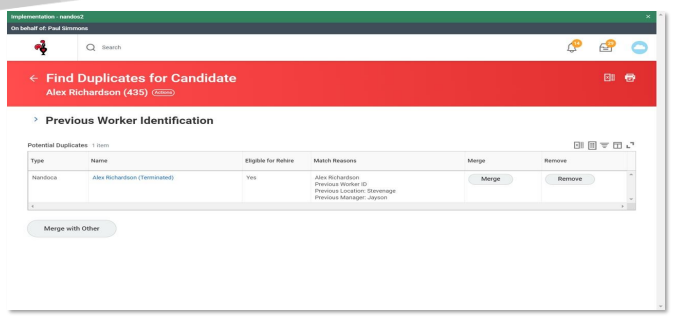
6. Check the information on the next page and click ‘OK’ 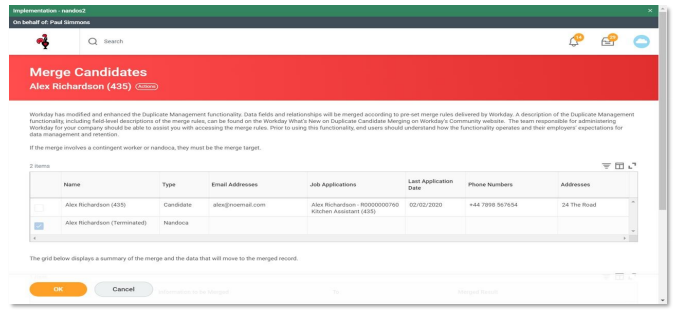
7. You have now successfully merged the records. Click ‘Done’. 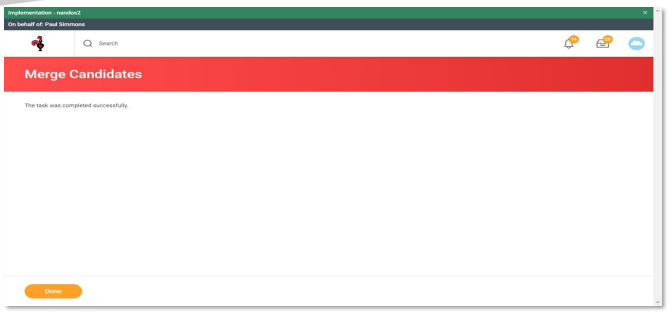
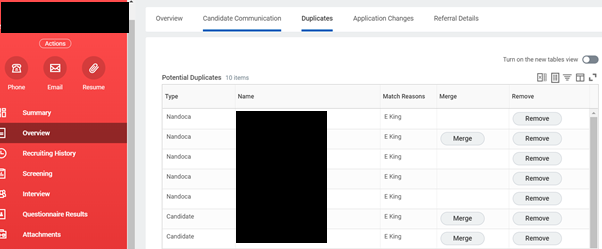
NB: You can also view any potential duplicates on the candidate record under 'Overview' on the 'Duplicates' tab:
8. Navigate back to your Inbox and ‘Submit’ the Find Duplicates for Candidate To Do
task. 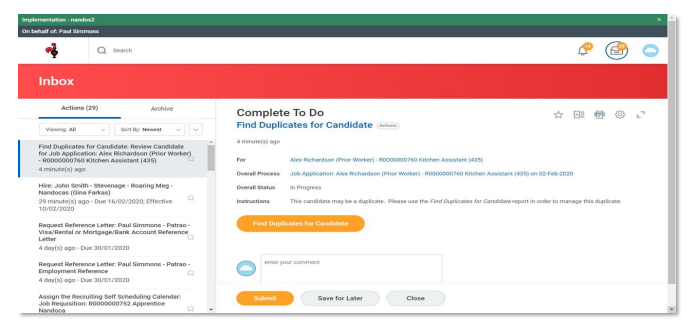
When the previous Nandoca appears on your candidate grid you will see that they are identified as a ‘prior worker’, you will also see in the ‘Previous worker’ column it will indicate if they have been marked as ‘eligible for rehire’
9. If you click into the candidate profile there will be a link to the ‘previous worker’ record. From here you will be able to see the role, location and previous manager if you would like to follow up with their previous manager for a reference before proceeding. If you would like to offer the role to this candidate once taking them through the normal recruitment process. Select Offer/Contract. 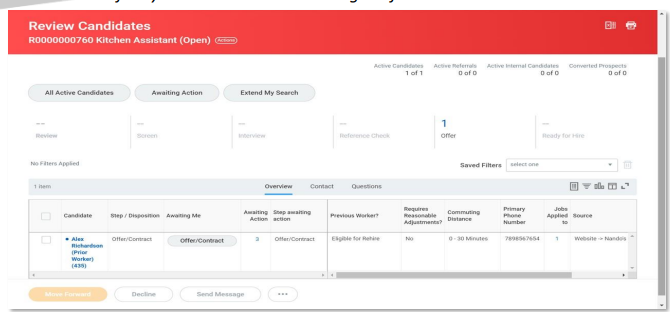
10. You will now be presented with the normal Initiate Offer screen
Click the pencil icon to edit 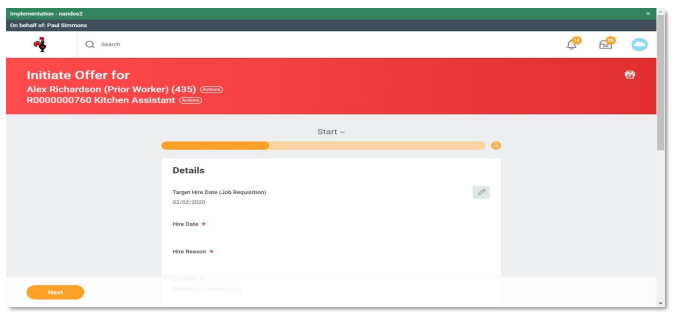
11. When selecting the Hire Reason, select “Rehire” rather than “New Hire” 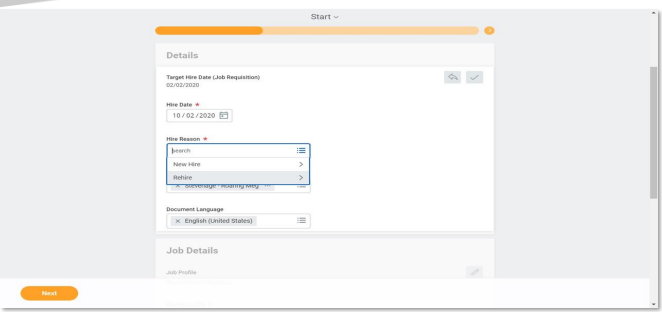
12. Select whether it is to fill a vacancy or a new position. The rest of the offer/contract
process is the same as for non rehires
Click “Next” 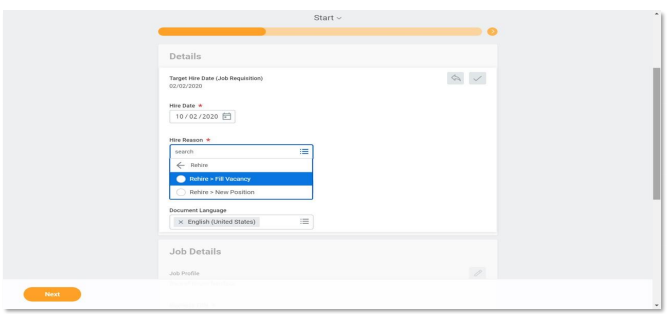
13. When complete you’ll go back to the Inbox screen