Closing requisition
A requisition will automatically close if you have filled all of the positions, however if you
need to close the requisition because you are no longer recruiting you can also do this.
*if you do have candidates on the requisition you want to close but are still recruiting, or a nearby restaurant is also recruiting - it may be helpful to drop the applicants a message and let them know as they may want to apply. The message can be edited, as can the 'replyto' email address. Please see the guide below for how to do this
https://nandoca.zendesk.com/hc/en-gb/articles/4408784087825-Bulk-emailing-previous-applicants
Useful Tip
1) Before you close the requisition - please decline any remaining candidates before you proceed with closing down
2) Before you close the requisition - please unpost your job if currently being advertised
Closing a requisition
1. From the Requisition, Click on the Actions button next to the Requisition name 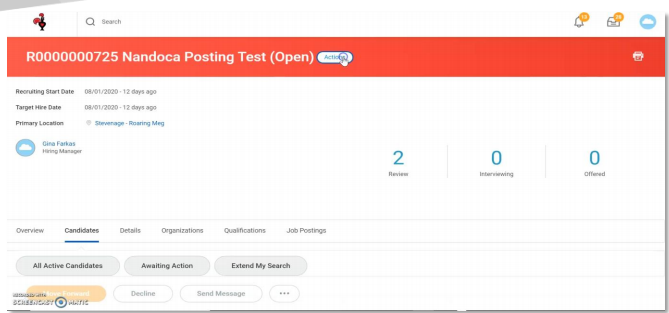
2. Hover over Job Change 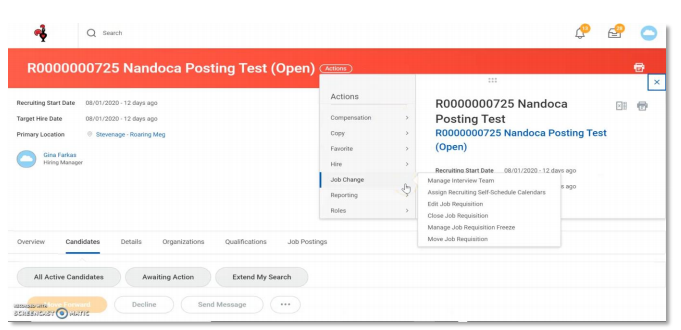
3. Select ‘Close requisition’ 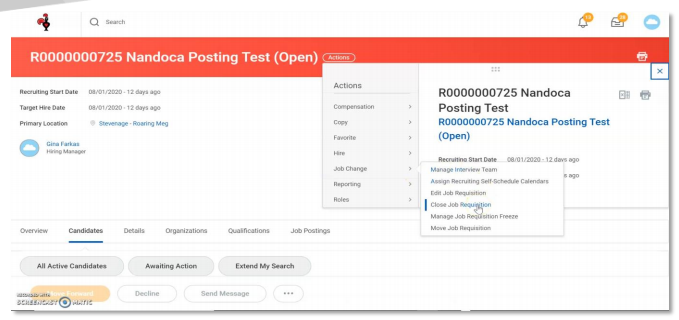
4. Select the ‘reason’ for closing the requisition from the drop down box 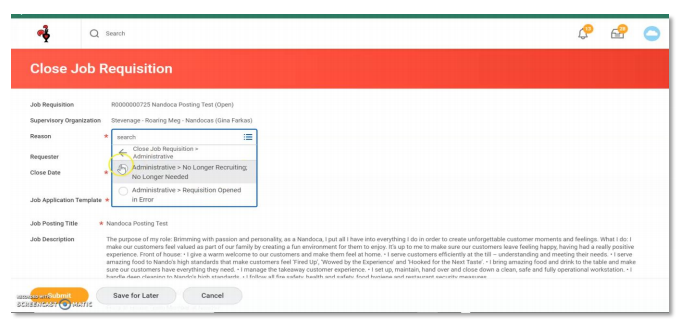
5. Select the date you are closing the requisition from the ‘close date’ field 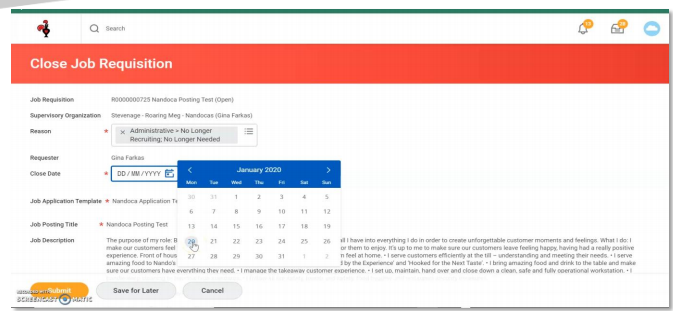
6. The rest of the information should default
Click submit 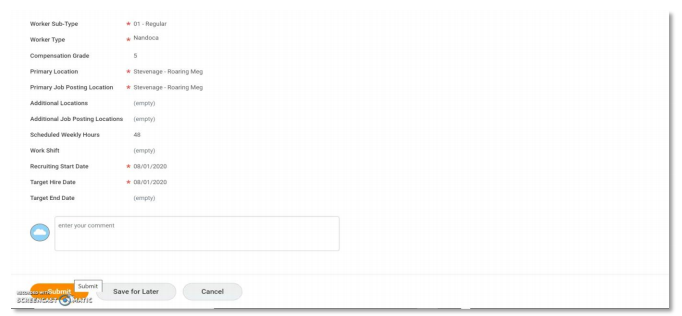
7. You will then receive a to do step in a pop up box at the top of the page **If you have declined all candidates you do not need to complete this step**
Open the to do step by clicking on ‘to do’ 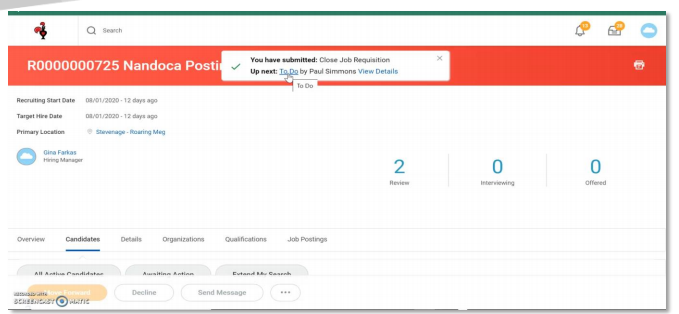
8. You will now need to ‘disposition/decline’ all the remaining candidates still active on
the requisition
Click on the requisition number highlighted in blue 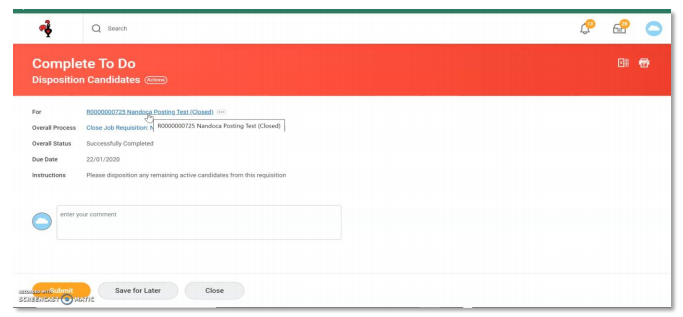
9. Navigate to the ‘candidate’ tab 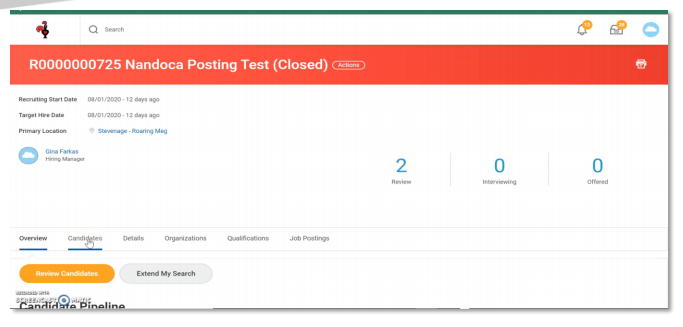
10. Select the box in the top left corner of the candidate grid to select all remaining
candidates 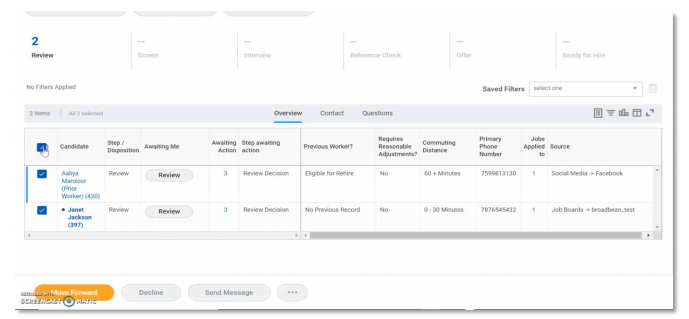
11. Click on the decline button 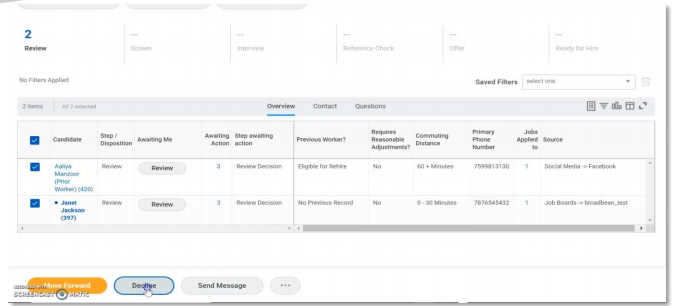
12. Select disposition reason 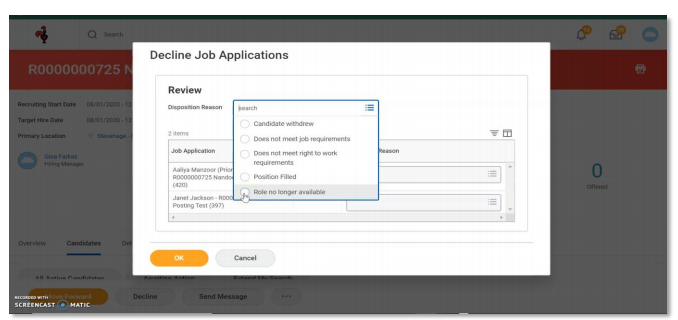
13. Click on Role no longer available
Click ok 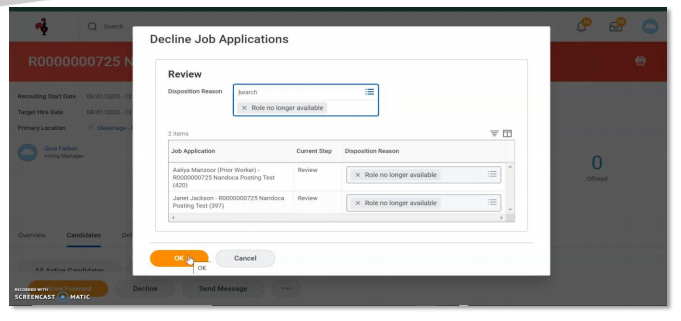
Process now complete